

Tip: How to change Launcher app on Android head unit - Seicane
October 17, 2017
Learn how to change the home screen launcher on your Seicane Android head unit with this detailed guide.
Quick Look
Overview
Are you looking to customize your Seicane Android head unit? In this tutorial, we will guide you through the steps of changing the home screen launcher. This not only enhances the look but also the functionality of your device, allowing for a more personalized experience on your off-road adventures.
What This Covers
This article will explain:
- How to find and install new launchers
- How to set a new launcher as your default home screen
- How to change back to the original launcher if needed
Step-by-Step Breakdown
Changing your launcher is a straightforward process, and it will help you make your Seicane head unit match your preferences better. Let’s go through the steps:
- Access the Apps Menu: Start by tapping the apps button on your home screen to bring up the menu.
- Open Google Play Store: From the apps list, locate and click on the Play Store icon.
- Search for Car Launchers: In the Play Store, type 'car launcher' in the search bar. You’ll see various options available such as Car Launcher AG and Car Web Guru.
- Install a New Launcher: Select the launcher you wish to try and click 'Install.' For this guide, let’s use Car Launcher Trial as an example.
- Open and Configure the New Launcher: Once installed, open the new launcher. You may be prompted for specific permissions like GPS access – make sure to allow these for optimal usage.
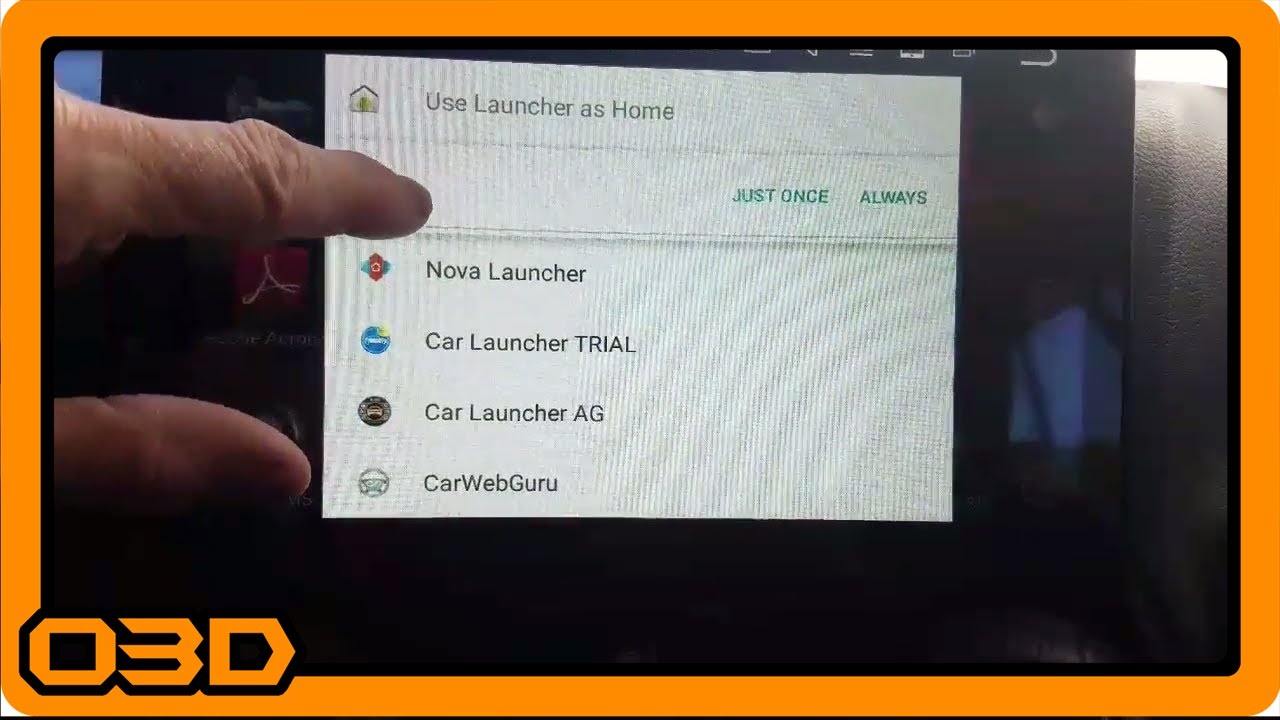
- Set as Default Launcher: When you press the home button after installation, a prompt will appear asking which launcher you wish to set as default. Choose the new launcher and opt for 'Always' if you want it to be your permanent home screen.
- Changing Launchers: If you decide you want to switch back or choose another launcher, navigate to Settings > Apps > (gear icon) > Home App. From there, you can select which launcher you want to use.
- Reverting to the Stock Launcher: If you want the original setup back, follow the same steps to select the ‘Launcher’ which is the default application.
Helpful Tips
Here are some helpful tips for a smoother experience:
- Experiment: Don’t hesitate to try out different launchers. Each has its own unique features that can enhance your driving experience.
- Keep Defaults in Mind: If you find a launcher you truly love, remember to save it as your default option. Otherwise, you’ll keep getting prompted every time you hit the home button.
- Backup Settings: If you create a personalized setup with your chosen launcher, consider taking screenshots of your layouts and settings. This way, you can easily replicate the configuration if needed.
Key Takeaways
Customizing your Seicane Android head unit with a new launcher can elevate your user experience significantly. With just a few simple steps, you can change the way you interact with your infotainment system. Whether you’re seeking something more functional or visually appealing, launchers allow you to make the device truly your own. So don’t be afraid to explore and find the setup that best suits your adventurous lifestyle!